Getting started with OzART
The Landing Page

When you first log in to OzART you’ll be presented with the landing page. This presents a list of report sets with summary statistics. Click on the title of the report set you want to work with to view it.
If you’ve only got one report set available then OzART will take you directly to the categories page for it.
The Categories Page
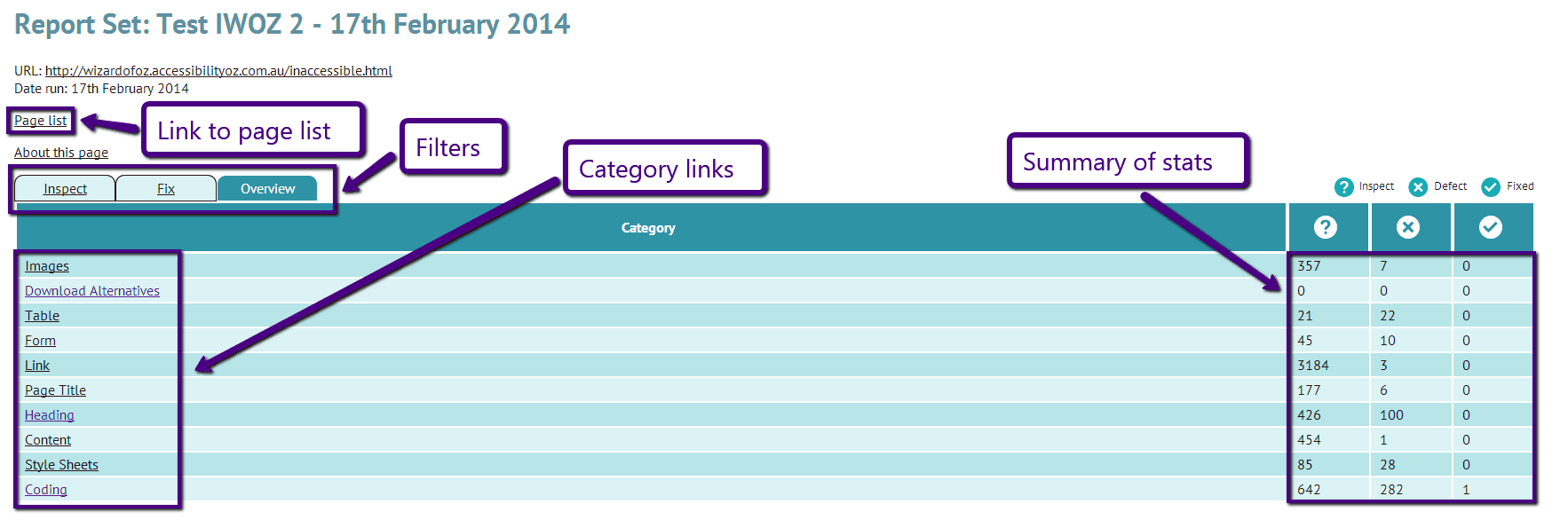
The categories page presents a list of error categories and summary stats. It also provides an entry point to the list of files/URLs that have been captured and analysed. Click on a category name to view it.
There’s also a set of filter tabs above the main table. These let you narrow down the view to see only the categories relevant to you at the moment. “Overview” shows all categories, “Fix” shows only those with with defects to be fixed, and “Inspect” shows only those that contain items that are still marked “Inspect”.
The Issue List
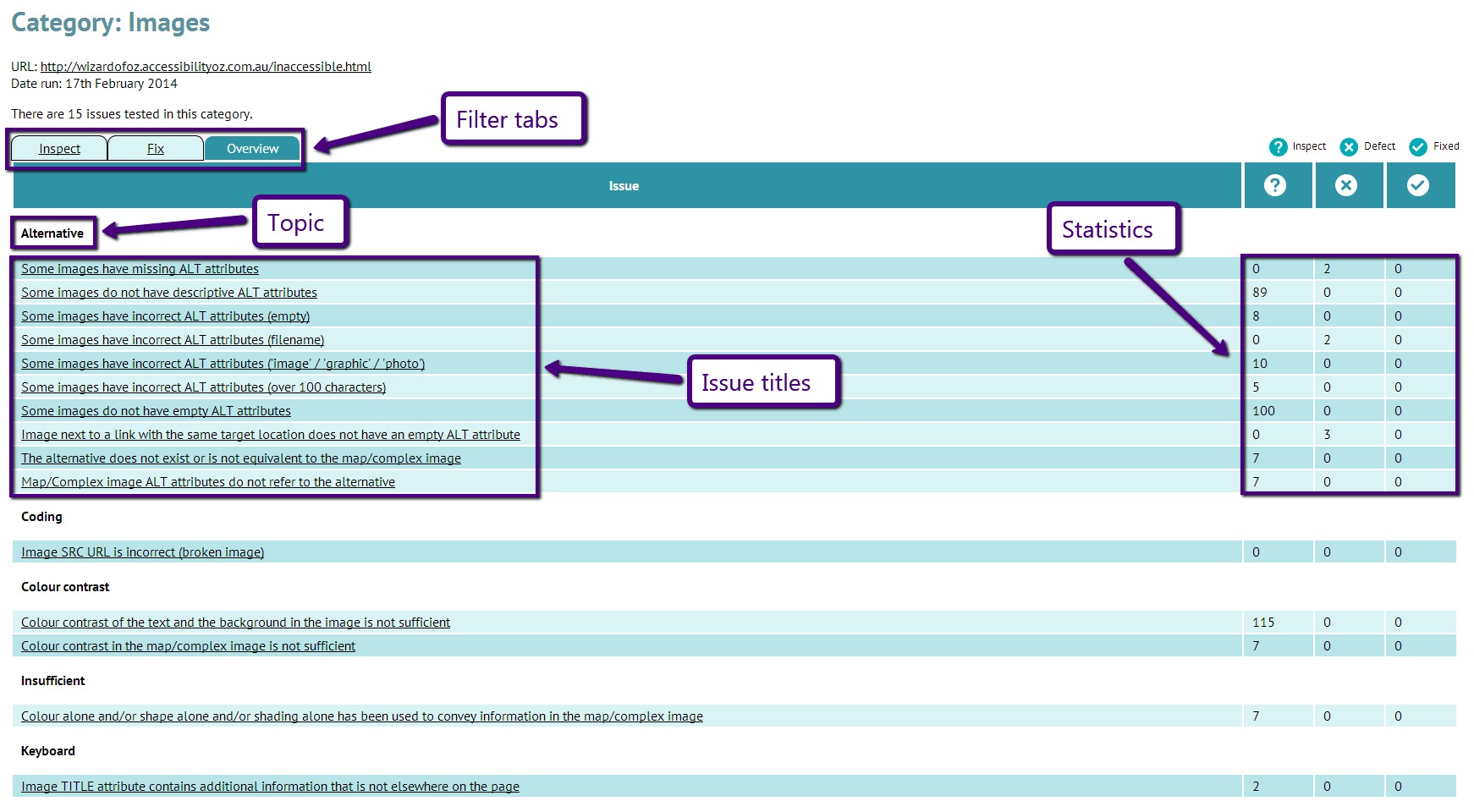
This page lists all of the issues we’ve looked for in the selected category, for example “Images”. Each issue has a set of statistics to give you an at-a-glance view of how much work remains to be done.
Clicking on the issue title will give you the detailed view of that issue.
The same set of filtering tabs as are available on the categories page are available here too, and OzART remembers what you last used so it’ll stick as you navigate the application.
The Report
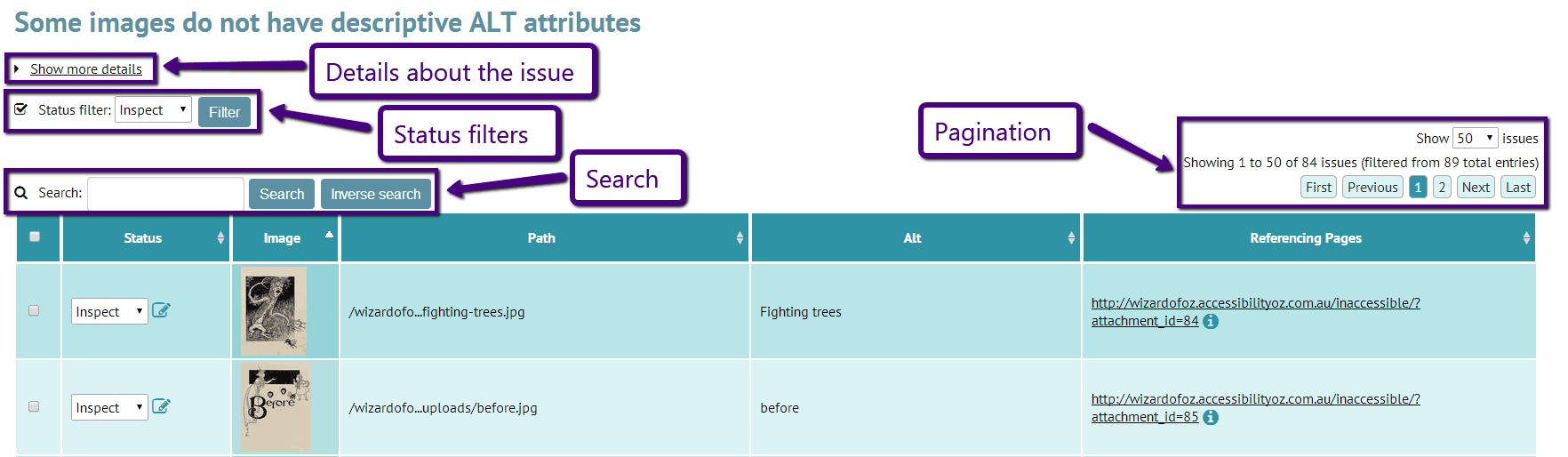
This is where we get down to the nitty-gritty. Each report will be a bit different so you should take a look at the “About this report” information provided on each of them if anything is unclear.
The basic gist is that you have a table of results. Each row represents an issue OzART has found. Each one has a status, a page URL, and some information like HTML code or text content or an image thumbnail.
Image reports are a special case, the image thumbnails, when clicked, will provide a full-sized view of the original image in a lightbox. Wherever possible this will be the image as fetched when the snapshot was taken.

You can change the status of an item in three ways:
- Individually, by using the dropdown in the Status column. This will immediately update the status; or
- Collectively, by ticking the checkbox in the far-left column for each item you want to change, and then using “Change selected status to” form controls at the bottom of the page; or
- In bulk, by clicking the “Bulk status change” link at the bottom. This will change all items in the report with one status to another, for example changing all “Inspect” items to “Okay”.
This third method is dangerous and can’t be reversed. It’s for use in the specific case where you have a report full of “Inspect” items and you’ve finished going through it marking off all the Defects (or Okays) and now you want to set the rest of the items to Okay (or Defect).
Finally, there’s a “note” icon next to the item status. This lets you attach a simple text note to a report item. The icon will change when there’s content.
Item Grouping
Where OzART finds the identical item on more than one page, it creates a “group”. The item will appear only once in the report, and in place of a page URL there will be a group number with a link to view the full contents of that group.
This is particularly helpful with template or CMS-generated items as you’ll see it once, can fix it once, and can then move on.